
Z naszego bloga
-
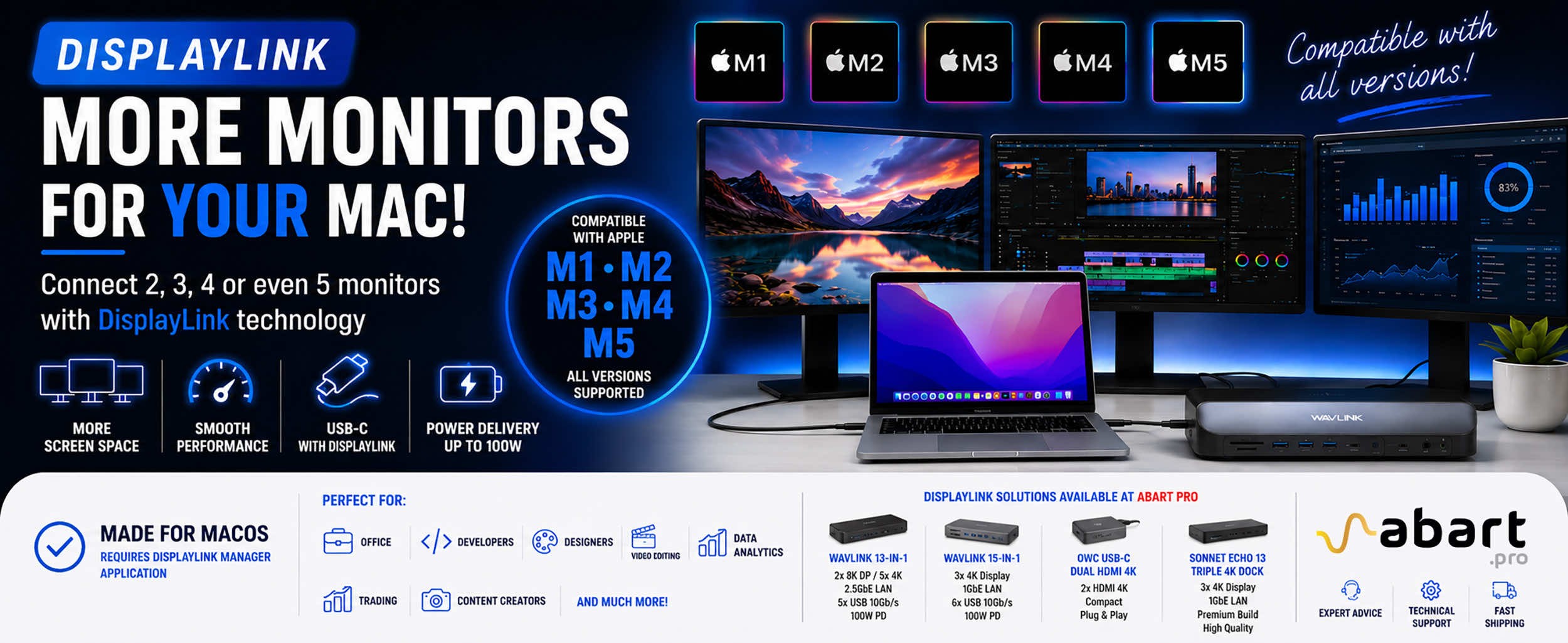 DisplayLink – How to Connect More Monitors to Apple Mac...
DisplayLink is a technology that easily expands the workspace of Apple Mac computers running macOS, PCs running Windows, and devices running ChromeOS and Android without compromising image quality or the performance of your Mac
-
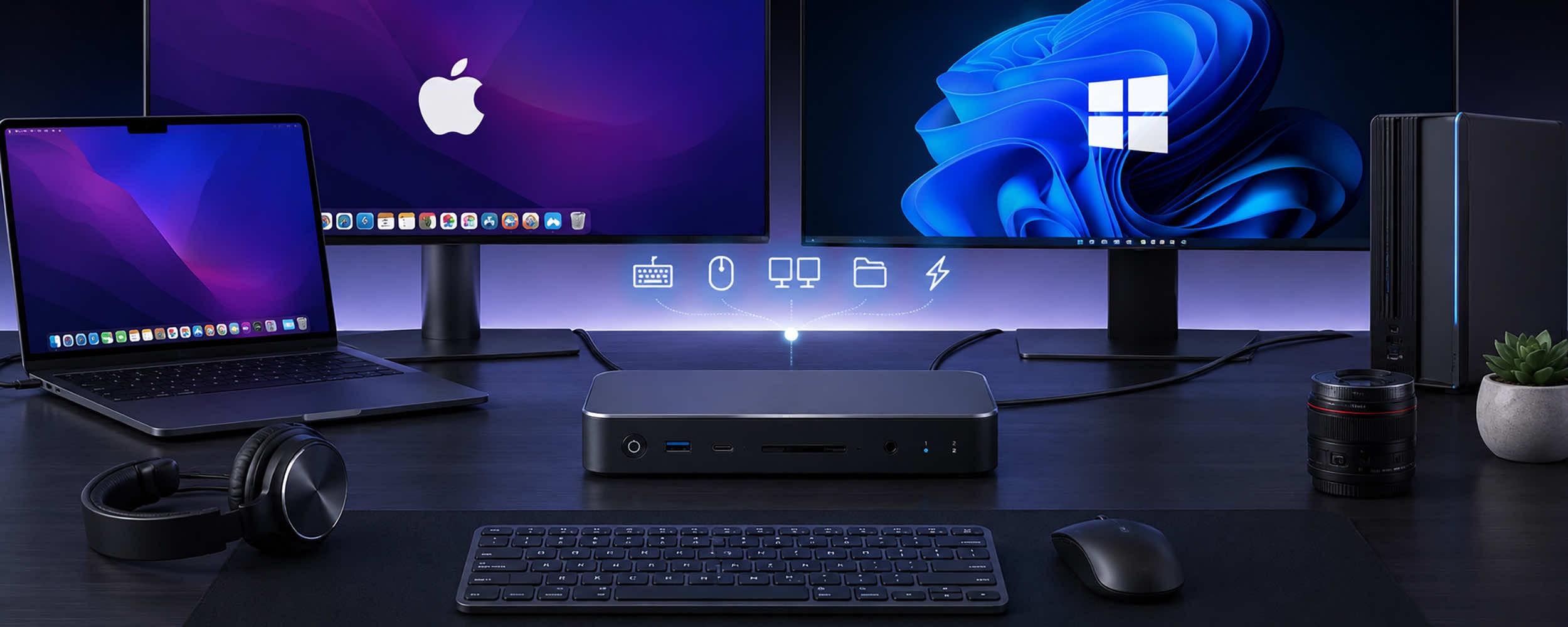 AV Access KVM Switches – Professional Solutions for macOS...
Modern workstations increasingly use more than one computer. Programmers work simultaneously on work and personal computers, graphic designers use high-performance workstations and laptops, and home users want to switch conveniently between their work computer and their gaming computer. For such applications, KVM (Keyboard, Video, Mouse) switches are the ideal solution, allowing users to control multiple computers using a single keyboard, mouse, and set of monitors.
-
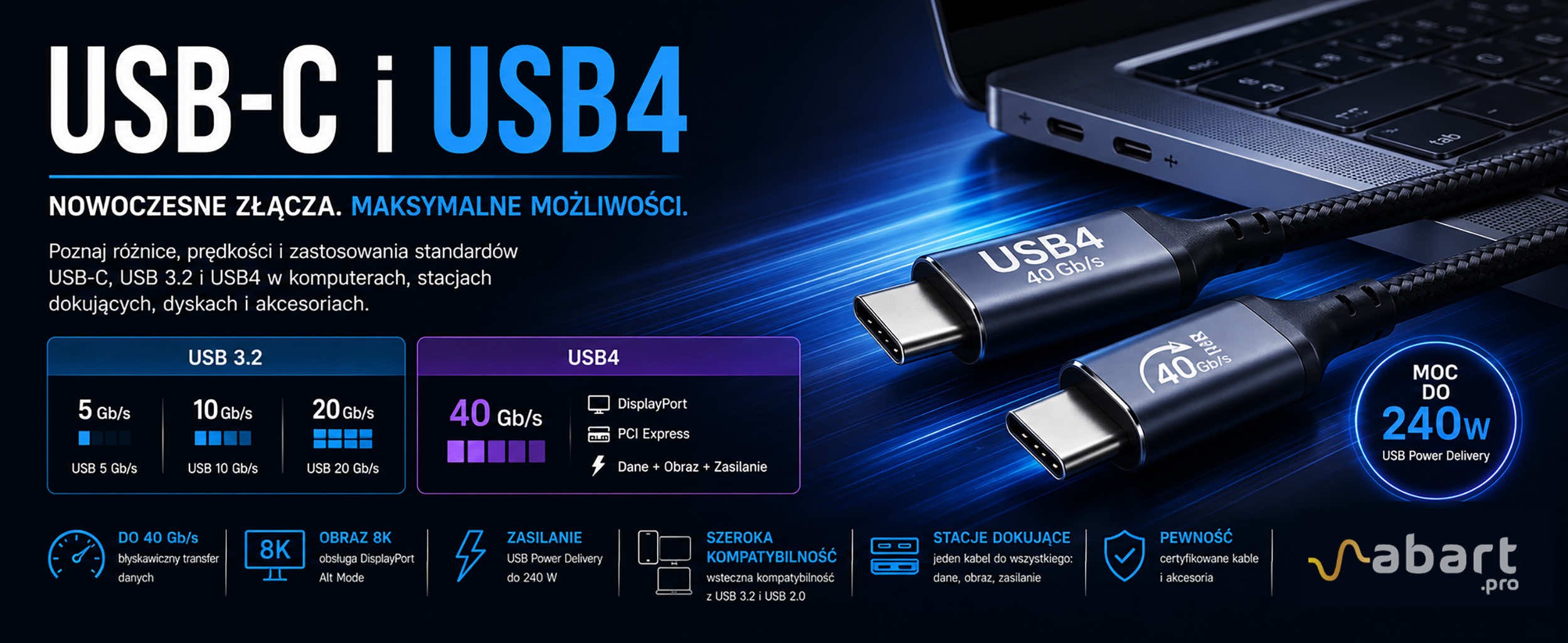 USB-C and USB4 – Differences, Speeds, and Applications |...
Just a few years ago, choosing the right USB cable was simple. Today, the situation is completely different. The market offers USB-C, USB 10 Gb/s, USB 20 Gb/s, USB4, Thunderbolt 4, and Thunderbolt 5. Although many of these standards use the same connector, their capabilities can vary dramatically. In this article, we explain what USB-C is, the differences between USB 3.2 and USB4, and how to choose the right accessories for use with Apple computers, PCs, docking stations, and professional peripherals.
-
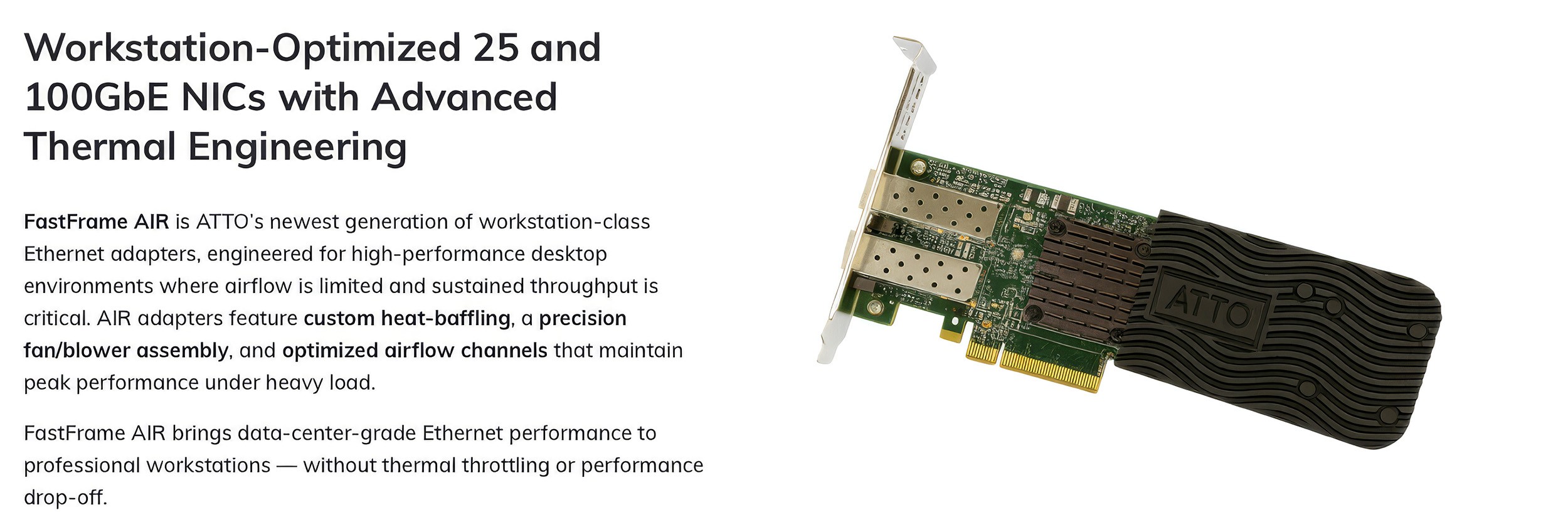 ATTO FastFrame™ AIR – professional 10/25/50/100GbE...
ATTO FastFrame™ AIR – professional 10/25/50/100GbE network cards for the most demanding workstations ATTO Technology is expanding its product portfolio with the new FastFrame™ AIR series of network cards, designed specifically for modern workstations that demand the highest performance, minimal latency, and reliable network communication. The new 10GbE, 25GbE, 50GbE, and 100GbE Ethernet adapters combine exceptional performance with an innovative active cooling system, making them ideal for environments where standard network cards cannot deliver the required performance.
Blog categories
Search in blog
DisplayLink – How to Connect More Monitors to Apple Mac Computers Running macOS, PCs, ChromeOS, and Android. A Complete Guide
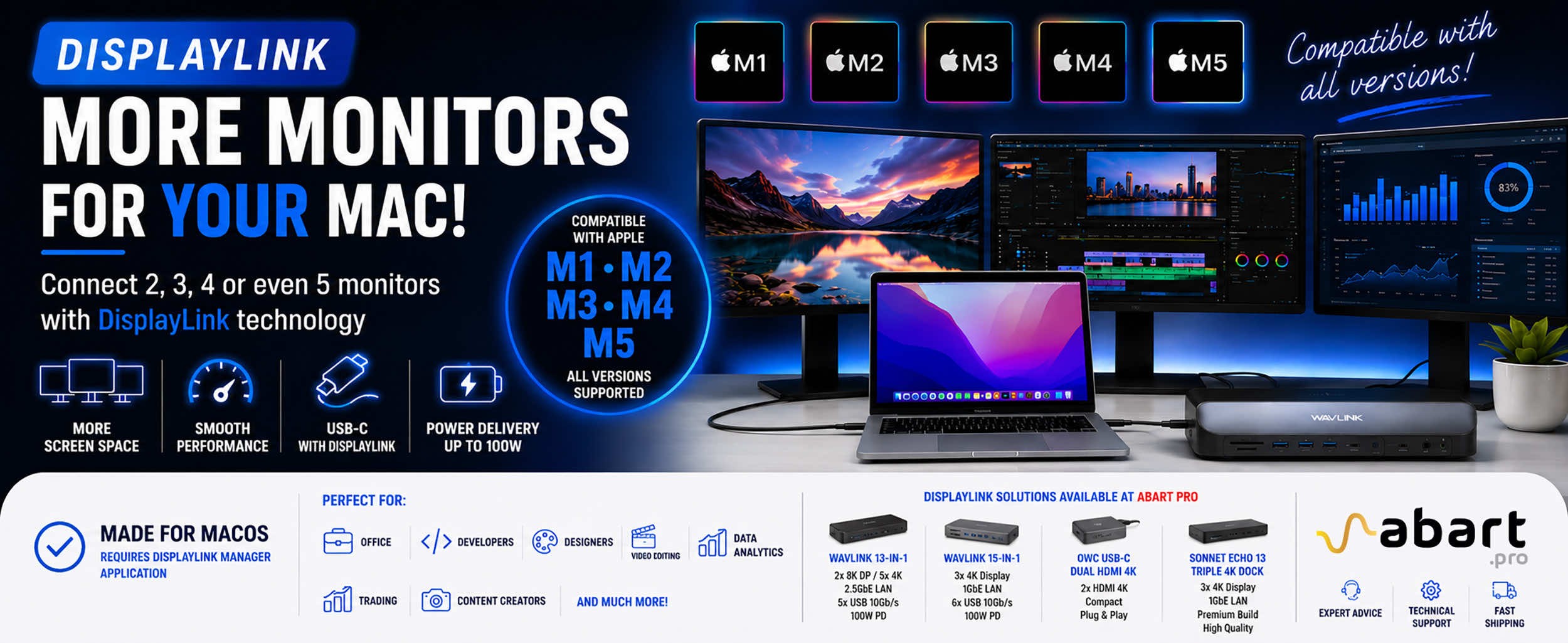
DisplayLink is a technology that easily expands the workspace of Apple Mac computers running macOS, PCs running Windows, and ChromeOS and Android devices without compromising image quality or the performance of your Mac
Modern Apple Mac computers equipped with Apple Silicon processors have revolutionized the market thanks to their tremendous performance, energy efficiency, and excellent user experience. Unfortunately, however, the MacBook Air, MacBook Pro, Mac mini, and Mac Studio have one limitation that can be very cumbersome for professionals: they support only a small number of externally connected monitors natively.
For programmers, graphic designers, video editors, financial analysts, or users working with multiple applications simultaneously, a single external monitor often proves insufficient.
The solution to this problem is DisplayLink technology, which allows you to significantly increase the number of connected monitors without having to replace your computer with a model featuring a higher-end Apple Silicon processor.
What is DisplayLink?
DisplayLink is a technology developed by Synaptics that enables video transmission via any USB interface instead of traditional HDMI or DisplayPort graphics outputs.
In practice, this means that:
- the video signal is transmitted via USB-C or USB-A,
- the computer recognizes additional monitors as independent displays,
- and we are not limited by the number of native GPU outputs.
The technology uses a special chip located in an adapter or docking station, along with the DisplayLink Manager software. The software is available for macOS, Windows, ChromeOS, Linux, and Android.
What limits the number of monitors on Apple Mac computers?
In Apple Silicon processors, the number of monitors supported natively depends on the chip version. This is not a limitation of the Thunderbolt or USB-C port. It is a limitation of the graphics processing unit (GPU) itself, which can simultaneously generate only a specific number of independent video signals. DisplayLink technology circumvents this limitation, creating additional capabilities for supporting displays via the USB port.
How many external monitors do Apple processors support?
Different versions of Apple Silicon processors support different numbers of monitors. Specifically:
- The M1 processor supports up to 1 monitor
- The M1 Pro processor supports up to 2 monitors
- The M1 Max processor supports up to 4 monitors
- The M1 Ultra processor supports up to 5 monitors
- The M2 processor supports up to 1 monitor
- the M2 Pro processor supports up to 2 monitors
- the M2 Max processor supports up to 4 monitors
- the M2 Ultra processor supports up to 8 monitors
- the M3 processor supports up to 1 monitor (2 when the MacBook lid is closed)
- the M3 Pro processor supports up to 2 monitors
- the M3 Max processor supports up to 4 monitors
- the M4 processor supports up to 2 monitors
- The M4 Pro processor supports up to 2 displays
- The M4 Max processor supports up to 4 displays
- The M5 processor supports up to 2 displays
- The M5 Pro processor supports up to 3 displays
- The M5 Max processor supports up to 4 displays
In practice, this means that owners of an M1 or M2 MacBook Air without DisplayLink can use only one external monitor, even though the computer has multiple Thunderbolt ports.
How does DisplayLink increase the number of monitors?
DisplayLink uses efficient video encoding performed by the computer’s processor and transmits the data via the USB bus to a chip located in a docking station or a USB-to-DisplayLink adapter.
This makes it possible to:
- add a second monitor to an M1 MacBook,
- add a third monitor to Apple Silicon processors that support up to two external monitors,
- configure setups with four or five monitors depending on the Apple Silicon processor version,
- use native Thunderbolt outputs and DisplayLink monitors simultaneously.
This solution is particularly popular in office and professional environments where a large workspace is essential.
Does DisplayLink work with macOS?
Yes. DisplayLink is fully compatible with macOS. It only requires the installation of the free DisplayLink Manager app, which enables support for additional monitors. Current software versions are regularly updated and support new releases of macOS.
Does DisplayLink slow down your computer?
No, DisplayLink technology does not slow down your computer because all graphics processing for additional external monitors is handled by the chipset located in the DisplayLink adapter. Nevertheless, modern DisplayLink chipsets are designed with everyday office work and professional applications in mind.
They perform exceptionally well for:
- office work,
- programming,
- photo editing,
- data analysis,
- working with documents,
- stock trading,
- and multitasking.
For professional gaming and applications requiring very low latency (e.g., esports), it’s still best to use native GPU outputs.
DisplayLink or Thunderbolt?
This is one of the most frequently asked questions.
Thunderbolt directly utilizes the computer’s graphics chip and delivers the highest possible image performance.
DisplayLink does not replace Thunderbolt—it complements its capabilities. It allows you to add additional monitors where the Apple processor reaches its native limits.
The best results are achieved by combining both solutions:
- the main monitor connected via Thunderbolt or HDMI output
- additional monitors via an adapter or docking station with DisplayLink technology.
DisplayLink Products Available at Abart Pro
Abart Pro offers professional adapters and docking stations equipped with DisplayLink chips, designed for both Apple computers running macOS and PCs running Windows, as well as hosts running ChromeOS, Linux, and Android
Among the available solutions are, among others:
Wavlink 13-in-1 DisplayLink Dock
A professional docking station capable of supporting up to five 4K monitors or two 8K DisplayPort monitors, additionally equipped with a 2.5GbE LAN port, high-speed 10 Gb/s USB ports, and 100 W Power Delivery charging.
Wavlink 15-in-1 Triple Display
A versatile docking station that allows you to work with three 4K monitors simultaneously, equipped with six 10 Gb/s USB ports, Gigabit Ethernet, and up to 100 W laptop charging.
OWC USB-C Dual HDMI 4K Display Adapter
A compact adapter that allows you to connect two 4K HDMI monitors to Mac computers equipped with Apple Silicon processors. It’s one of the simplest and most portable solutions for users who need additional workspace.
Sonnet Echo 13 Triple 4K Display Dock
An advanced, premium-class docking station offering support for three 4K monitors, numerous USB ports, Ethernet, and the high build quality characteristic of Sonnet Technologies products.
Why buy DisplayLink from Abart Pro?
Abart Pro specializes in professional solutions for users of Apple Mac computers and Windows workstations. Our product lineup consists exclusively of proven products from renowned manufacturers such as Wavlink, OWC, and Sonnet Technologies.
The devices we offer are the ideal choice for graphic designers, video editors, programmers, photographers, CAD engineers, IT specialists, and all users who need a larger workspace than what Apple processors’ native monitor support allows.
Related posts
-
 Nowość! Stacja dokująca od Sonnet z dwoma zatokami na dyski NVMe
Sonnet has released the latest docking station enabling the installation of two PCIe NVMe M.2 2280 drives with a...Read more
Nowość! Stacja dokująca od Sonnet z dwoma zatokami na dyski NVMe
Sonnet has released the latest docking station enabling the installation of two PCIe NVMe M.2 2280 drives with a...Read more -
 Trzy wyświetlacze do Apple Mac z M1/M2/M3? To nie problem!
We know perfectly well how good Apple processors from the M1, M2 and M3 families are. These systems used in Apple...Read more
Trzy wyświetlacze do Apple Mac z M1/M2/M3? To nie problem!
We know perfectly well how good Apple processors from the M1, M2 and M3 families are. These systems used in Apple...Read more -
 OWC Thunderbolt Pro Dock - The best docking station for professional developers
OWC Thunderbolt Pro Dock – high throughput and flexibility for demanding professionals working with high resolution...Read more
OWC Thunderbolt Pro Dock - The best docking station for professional developers
OWC Thunderbolt Pro Dock – high throughput and flexibility for demanding professionals working with high resolution...Read more -
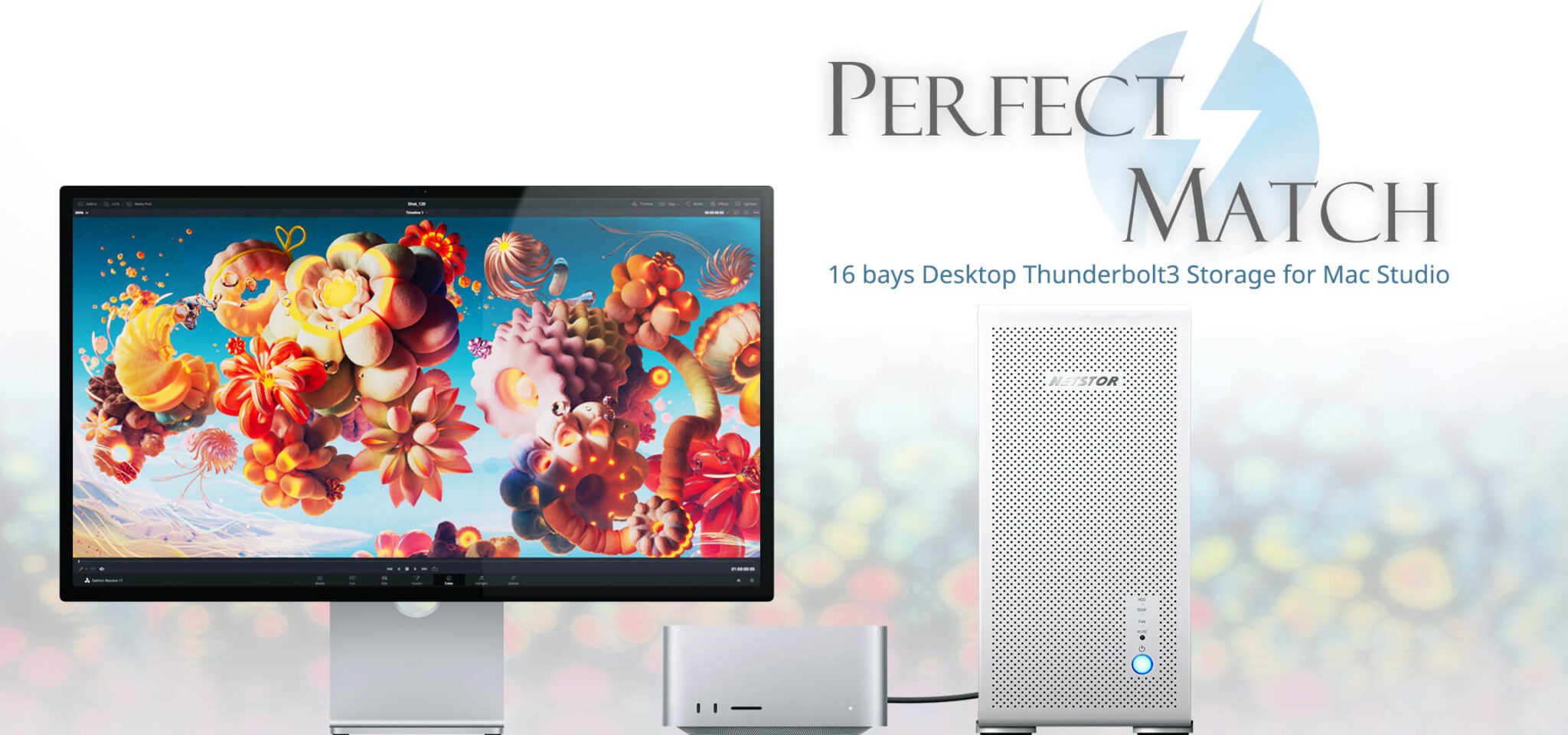 Do 320TB w sprzętowym RAID poprzez port Thunderbolt. Z Mac Studio idealna para!
Netstor NS780TB3 is a 16-bay enclosure that allows you to connect up to 320TB of fast mass storage to a computer...Read more
Do 320TB w sprzętowym RAID poprzez port Thunderbolt. Z Mac Studio idealna para!
Netstor NS780TB3 is a 16-bay enclosure that allows you to connect up to 320TB of fast mass storage to a computer...Read more -
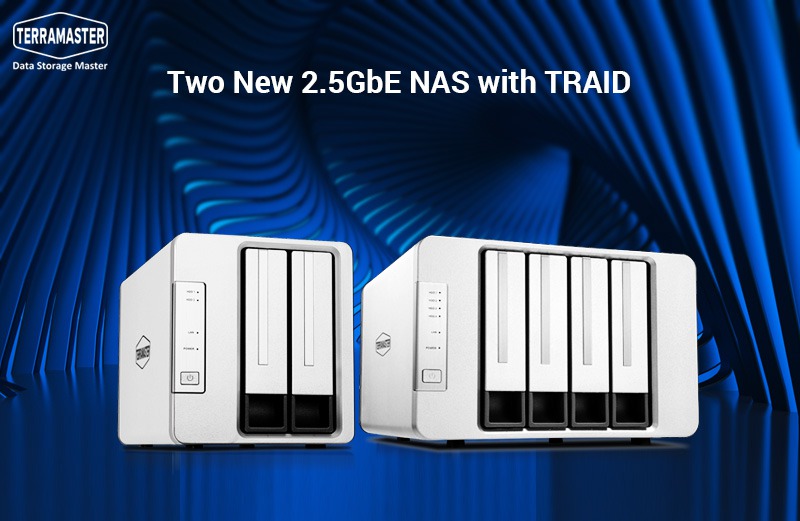 Nowe NASy od TerraMaster z 2x 2,5GbE i zatokami na 2x M.2 SSD
The new TerraMaster F2-223 and F4-223 NAS devices support TRAID. This is a flexible disk array management tool...Read more
Nowe NASy od TerraMaster z 2x 2,5GbE i zatokami na 2x M.2 SSD
The new TerraMaster F2-223 and F4-223 NAS devices support TRAID. This is a flexible disk array management tool...Read more
Leave a comment